
Cavebot
Module: Cavebot
Walks your hunting route by itself, in a loop, stopping to fight monsters on the way. No route yet? Stand in your hunting place and click “✦ Generate route”: the bot reads the game map and builds the whole loop for you in one click. You can also record a path yourself by walking it once. On PC the character keeps walking while the bot window is open, even in All settings. On Android it keeps walking with the small panel open, but not while the full window is open: then the Cavebot waits.
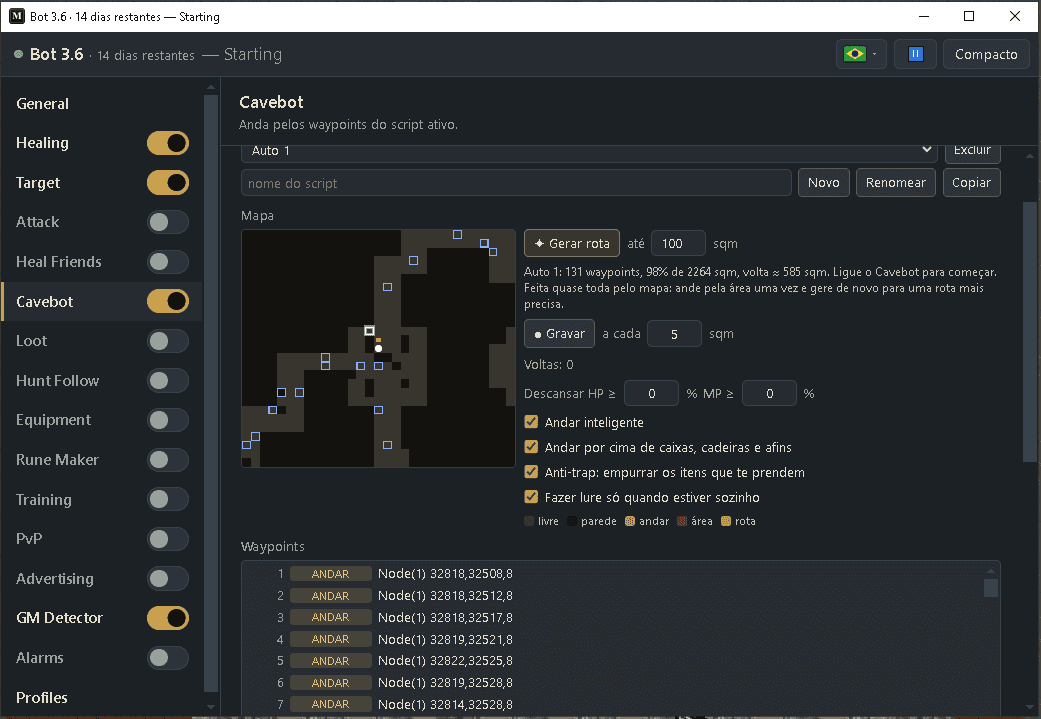
How to turn it on
- 1Go to your hunting place and stand in the middle of it.
- 2Click Bot, then ⤢ (All settings) and pick Cavebot in the list.
- 3Click “✦ Generate route”. A new script (“Auto 1”) with the whole loop is created and selected for you.
- 4Prefer your own path? Click “● Record” instead and play your lap back to the start as usual — stairs, rope, shovel, teleports and NPC talks are recorded too — then click “■ Stop” (on Android, close the full window while you walk and open it again to stop).
- 5Optional: add special steps (rope, stairs, Buy, Sell, Deposit) with the editor.
- 6Turn Cavebot on with its switch (in the compact view or in the list) — and Target too, to fight. Your character starts walking (on Android, close the full window first).
Settings, one by one
✦ Generate route — a route in one click
Don’t know how to build a route? Let the bot do it. It reads the game map around you, finds every free tile you can walk to, and builds a loop that passes close to every corner — so monsters anywhere in the area come into view and get attacked. Your other scripts are never changed.
✦ Generate route
Builds the route starting from where you are standing and saves it in a new script (“Auto 1”, then “Auto 2”…), which becomes the selected one. It also turns the Cavebot off so you can look at the route first — the waypoints show up in the list and on the small map. Turn the Cavebot on when you are ready.
Values: One click. Usually ready at once; far areas can take a few seconds while the line shows “Reading the map…”.
ExampleStand in the middle of the rotworm cave → click → “Auto 1”
within … tiles
How far from you the route may go. Walls end the route anyway, so in a cave the default is fine. In big open places (outside, around a city) use a smaller number so one lap does not get too long.
Values: 10 to 150 tiles. Default 100.
ExampleCave: 100 · open field: 40
The line under the button
After generating, it tells you the name of the new script, how many waypoints were made, how much of the area the route covers and how long one lap is. Notes may follow — see “Messages and what to do” below.
Values: —
Example“Auto 1: 62 waypoints, 97% of 880 tiles, lap ≈ 310 tiles. Turn the Cavebot on to start.”
What it leaves out
The route stays on the floor you are on. It never steps on stairs, holes, ramps, water or unexplored (black) parts of the map. For a cave with several floors, generate one route on each floor, or record the stair parts with ● Record.
Values: Only the current floor.
Example2-floor cave → “Auto 1” upstairs, “Auto 2” downstairs
Generate route — messages and what to do
Sometimes the line under the button shows a note, or “Could not generate a route:” followed by the reason. Here is what each one means.
“The area is very open: the route covers the ground nearest to you.”
There was a lot of free ground (like outside a city), so the route kept only the part closest to you. Use a smaller distance, or stand right where you want to hunt.
“Built mostly from the map: walk the area once and generate again for a tighter route.”
Most of the route came from the game map, which does not show small things like tables, fences or statues. It usually works fine. If your character keeps stopping at the same spot, walk around the area once and click Generate route again, or remove that waypoint from the list.
“Unexplored ground nearby was left out.”
Parts of the map that were never revealed are black and were skipped. Explore them and generate again if you want them in the route.
“Some spots stay out of the route.”
A few corners could not fit in the loop. The route still covers most of the area.
“No map data here: only what you can see around you was used.”
The game map was not available, so the route only covers what is on and around your screen. Walk a little and try again.
“Not enough free ground around you…”
You are in a very small place (a room, the end of a corridor). Walk into the hunting area and try again.
“Stand on a walkable tile and try again.”
You are standing on stairs, a hole or something blocked. Take one step to the side and try again.
“Map data did not load. Try again.”
The game took too long to load the map. Wait a second and click again.
“Invalid radius: use a whole number from 10 to 150.”
The distance must be a whole number between 10 and 150.
“The route is too long. Use a smaller radius.”
The area is huge. Lower the distance and click again.
The basics
Script
A saved route. Pick the active one on the dropdown (only one runs). Use New, Rename, Copy and Delete to manage them, and Export/Import to share a route as text.
Values: As many scripts as you like.
Example“rotworms”, “dragons”, “Auto 1”
● Record + every … tiles
Records your path while you walk: a waypoint every few tiles, plus every stairs, ladder, rope, shovel hole, teleport and NPC talk (see “● Record — what becomes a waypoint” below). Just tap Record: it turns the Cavebot off for you and creates a script if you have none.
Values: every 1 to 20 tiles. Default 5.
ExampleRecord, every 5 tiles
Rest HP ≥ / MP ≥ (%)
Before walking to the next waypoint, wait standing still until your HP and mana reach these percents.
Values: 0 to 99 each. Default 0 (off).
ExampleRest HP ≥ 80, MP ≥ 60
Smart walking
After a fight (or any pause) the character keeps going forward. While it chased a monster it may have run past the next waypoints; with this on it skips the ones it already passed close to (about 3 tiles) and heads to the next one ahead, instead of walking all the way back to the waypoint it was going to. It never skips Stand waypoints, stairs, ropes or other actions, and it changes nothing while you are just walking the route.
Values: On / Off (default Off).
ExampleOn — after chasing a monster 6 tiles down the corridor, the route continues from there
Lure only when alone
Luring with other players around drags monsters onto them. With this on, while another player is on the screen the bot does not lure: it fights the monsters already with you and starts luring again 3 seconds after the player leaves. Turn it off if you hunt in a busy place or with friends.
Values: On / Off (default On).
ExampleOn — a player walks in: the bot stops luring and kills what it brought
Walk over boxes, chairs and the like
With Direct Controls on, the Cavebot walks like a click on the map, and a map click never goes over a box, chair, chest or parcel — even when your character can step on it. With this on, when the route goes through one of them the bot walks up to it and clicks on top of it (and, if that does not work, steps on it) and keeps going, so it never gets stuck on something you can walk over. Off = it walks around them, like a map click does.
Values: On / Off (default On).
ExampleOn — a chair in the middle of a narrow corridor: the bot steps on it and goes on
Anti-trap: push away items that box you in
Some players trap others: they throw cauldrons, barrels or other items you cannot walk over around you, then a poison or fire field, and you lose life without being able to leave. With this on, when an item like that is thrown right next to you, the bot pushes it to a free tile nearby (never back next to you) and the Cavebot keeps going. If you are already boxed in, it pushes the items around you even if they were there before. It only pushes items that can be moved: walls, statues and furniture fixed to the map stay where they are. Works with Direct Controls on (General page), on PC and Android, even in the middle of a fight.
Values: On / Off (default On).
ExampleOn — someone throws a large cauldron next to you: the bot moves it out of the way and walks on
Waypoints
The list of steps in your route. Select one to edit it; use the buttons to manage the list.
↑ ↓ · Start here · Edit · Remove · Clear
Move a waypoint up/down, make the route start from the selected one, edit it, remove it, or Clear the whole list (click twice to confirm).
Values: —
ExampleStart here → begin the loop at the chosen waypoint
Add after · Add before · Replace · the position grid
To add a step, pick its type and position, then Add after (insert after the selected waypoint, or at the end), Add before, or Replace (overwrite the selected one). For the position, type x/y/z or use the little 3×3 grid: “Here” is your own tile and the eight arrows are the tile in that direction from you.
Values: —
ExampleStand on the spot → “Here” → Add after
The side panel — map and rounds
Next to the waypoint list the Cavebot page shows a live little map of what the bot sees around you and how many rounds you have hunted.
Map
A small live view of the tiles around you, the way the bot sees them. The legend explains the colours: free (a tile you can walk), wall (blocked — wall, water, item or creature), floor (a floor change: stairs, hole, ramp or ladder), area (a special area the route avoids) and route (the path to the current waypoint, in green). Waypoints on this floor show as numbers.
Values: Just a view — nothing to set.
ExampleGreen line = where the bot is heading next
Rounds
How many times the script looped: a Goto or If jumping back, or the end of the list. Use “if rounds ≥ N → town” to go shopping every N laps; that jump resets the count.
Values: Counts up on its own; resets when an “if rounds ≥” jumps.
Example“Rounds: 3”
● Record — what becomes a waypoint
Play your lap normally while it records: walk, take stairs, use the rope or the shovel, step on teleports and talk to NPCs. Each thing you do becomes the right waypoint, so the Cavebot can repeat the whole lap — on PC and on Android.
Walking
A Walk (Node) every few tiles — the number next to Record.
Stairs, ramps, holes and ladders
A “Stairs / hole” waypoint on the tile you used, then a Walk where you arrived.
Rope
A “Rope” waypoint on the rope spot. Needs a rope on a crosshair hotkey when the Cavebot plays it.
Shovel
A “Shovel” waypoint on the stone pile you dug — the hole closes again, so the Cavebot digs it each lap. Needs a shovel on a crosshair hotkey.
Teleport
A “Teleport” waypoint on the teleport tile, then a Walk where it took you.
Levitate and magic rope
Casting exani hur up/down or exani tera becomes a Levitate or Magic rope waypoint. If “Hide spell casts in chat” is on in the game, the bot can’t see the spell: change the type in the editor.
Talking to an NPC
What you type or click in the NPC window, standing close to the NPC (up to 4 tiles), becomes one “Talk to NPC” waypoint with your phrases in order. Moving away, 30 s of silence or 10 phrases ends it. If the NPC takes you somewhere (boat, carpet), only a Walk at the arrival is added after the talk.
Examplehi → trade → bye = Talk to NPC: hi; trade; bye
The line under Record
While recording it shows how many waypoints were recorded, the last one, and when you are in a talk with an NPC.
Example“12 waypoints recorded · last: Rope (#9)”
What it can’t tell
If you are moved in a way it can’t recognise (temple, death), it adds a Walk where you were and one where you arrived. Change the type in the editor if needed.
Waypoint types
When you add or edit a waypoint you pick a type. Most routes only use Walk; the rest are for special spots.
Walk
Walk to a tile. The normal step. A Walk placed right on stairs or a hole makes the character go through it.
Stairs / hole
Change floor by stairs, hole, ramp or ladder. Put it on the stairs tile: the character walks onto it without stopping. A ladder is climbed with a right-click. If the next waypoint is on the same floor as the stairs, the list shows “same floor next”: the order is probably swapped (the character could not reach it).
Teleport
Step onto a teleport: the character walks onto the tile and goes where it leads, on the same floor or another.
Use tile
Use a ladder, sewer grate, door or lever.
Rope
Use a rope on a rope spot (rope on a crosshair hotkey). Without it, the waypoint shows “no hotkey” and a red warning appears above the list, saying which waypoints need it.
Shovel
Dig a stone pile and go down the hole (shovel on a crosshair hotkey). Without it, you get the same “no hotkey” warning.
Levitate
Cast exani hur up/down to climb a ledge.
Magic rope
Cast exani tera to rope up from a rope spot.
Label
A named spot that Goto and If can jump to.
Goto
Jump to a label.
Delay
Wait a set time before the next step.
Buy
Buy from the NPC next to you: each item until you carry the amount you set. Add it standing next to the NPC.
Sell
Sell to the NPC next to you everything you carry of each listed item.
Deposit
Open the depot locker next to you, put the listed items in your chest and take the listed supplies out, up to the amount.
If → goto
Jump to a label when a condition is true.
Lure start / Lure end
Between these, keep walking without stopping for monsters until enough are following; at Lure end, fight. The rows in between are tinted in the list.
Talk to NPC
Talk to an NPC: walks next to it and says your phrases in order, waiting for each answer. When the NPC window shows the word as a button, the bot clicks it; otherwise it types it. Works on PC and phone.
Advanced waypoint settings
Only needed for the special types above. You can skip this for a simple route.
Lure start — monsters
How many monsters from your Target list to bring before stopping to fight. While luring, the bot attacks the nearest one in Stand as it walks (your Attack spells and runes fire at it), and if the monsters fall far behind it stops and waits for them (up to 10 seconds). If the way is blocked, it fights what came instead of skipping. Monsters marked “Avoid Lure” in the Target module don't count. Needs Target on.
Values: 0 to 10. Default 3. 0 = keep luring until Lure end.
ExampleLure start 4 → walk → walk → Lure end
radius (Walk)
0 = stand on the exact tile; 1 or more = “close enough” within that many tiles (smoother walking).
Values: 0 to 10. Default 0.
Example2
Delay (ms)
How long a Delay waypoint waits.
Values: 0 to 600000 (10 min). Default 1000.
Example1000 ms = 1 second
Buy / Sell
The NPC name (empty = the NPC next to you) and the items: search by name and click; for Buy, set “up to” — the bot buys until you carry that many, counting your open backpacks and the hotbar. The bot says hi and trade, buys or sells, and closes the shop. Needs Direct Controls.
Values: up to 20 items per waypoint; up to 1–100000.
ExampleBuy @ Alvara: Life Fluid up to 100, Mana Fluid up to 50 · Sell @ Rashid: dragon shield
Deposit
“put in the depot”: items moved from your open backpacks into your depot chest. “take from the depot”: items taken out, up to the amount. Needs Direct Controls.
Values: up to 20 items in each list.
Exampleput: gold ring, small emerald · take: Sudden Death Rune up to 20
If → goto
A condition that jumps to a label. Conditions: cap <, item <, HP % <, MP % <, monsters ≥, rounds ≥, far from, level ≥, vocation =.
Values: value 0–100000; optional else label. vocation = none means the character has no vocation yet.
Examplelevel ≥ 8 → “check”; at “check”: vocation = none → “oracle”, else “hunt”
Talk to NPC
NPC name (empty = talk where you stand, to any NPC nearby), the phrases separated by ; and, optionally, a label to go to if the NPC is not found or does not answer.
Values: up to 10 phrases, 120 letters each. The bot waits up to 4 s for each answer and repeats a phrase once.
ExampleThe Oracle: hi; yes; knight; yes — if it fails → “hunt”
Special areas
Mark places on the map to avoid. Give a name and radius, use “Around me”, or capture a rectangle with Corner A and Corner B.
Values: radius 0–50. Default 1.
Example“depot” radius 2
Ready example — a route in one click
- Go to the rotworm cave and stand in the middle of it.
- Click Bot, then ⤢ (All settings) → Cavebot. Leave “within 100 tiles” as it is.
- Click “✦ Generate route”. The line below says “Auto 1: … waypoints, …% of … tiles”.
- Turn Cavebot and Target on — both switches are in the compact view (on Android, close the full window first).
- Your character walks the whole cave in a loop and stops to fight on the way.
On PC the bot window never stops the Cavebot, not even in All settings. On Android your character does not walk while the full window is open: the Cavebot waits. Close it to let the Cavebot run — the small panel can stay open, it does not stop anything.
Stand in the middle of your hunting area before clicking Generate route — the route grows from where you stand.
Generating again never deletes anything: it makes “Auto 2”, “Auto 3”… Delete the ones you don’t want with Delete.
Caves with stairs: a generated route covers one floor. Generate one on each floor, or record the stair parts with ● Record.
Want full control? Record a loop yourself, then add rope, stairs and the town waypoints (Buy, Sell, Deposit) later, one at a time.
Your Target is on Follow and the character keeps walking back after each kill? Tick “Smart walking”: after the fight it continues from the next waypoint ahead.
Stuck spots fix themselves: if the game refuses the way 3 times, you get teleported or pushed away, or you end up on another floor, the bot moves on to the next waypoint. The line under the status (“Last event”) tells you what it skipped and why.
Fire, poison and energy fields: the route goes around them when there is another way, and only walks through when there is none — one step at a time, because a map click never crosses a field. Turn off Walk over fields (General) to never step on one.