
Minibia Bot guide
This guide explains everything the bot does, in plain words, with a picture and an example for each setting. Read the page for the feature you want, copy the example, and you are done. No experience needed.
1. Open the bot
- 1Log into Minibia. On PC, look at the buttons on the right side, where Logout is. On Android, look at the bar at the top of the screen.
- 2Click the Bot button (on PC it is just above Logout). On PC the bot opens in its own window, “Bot — <your character’s name>”, outside the game. On Android a small see-through panel opens on top of the game, on the right edge.
- 3Either way you keep playing: you walk, fight and click the map, and the Cavebot keeps walking. On PC, clicking Bot again brings the bot window to the front; on Android it hides the panel.
2. The bot window (PC) and the panel (Android)
On PC, the bot has its own window, separate from the game and titled “Bot <version> · <days left> — <your character’s name>”. Nothing of the bot sits on top of the game, so it never gets in the way of your clicks, keys or game windows. The window stays above the game window, minimizes with it, can be dragged to a second monitor and remembers its position and size.
It opens small (Compact): a colored dot, ⏸ to pause everything (▶ resumes) and the switches of the main modules: Cavebot, Target, Attack, Healing and Rune Maker, plus Heal Friends, Loot, Hunt Follow, Equipment, Training, PvP or Advertising while they are on. Each row is just the module’s name and its switch. General has no single switch, so it is not in this short list. Press ⤢ (All settings) or tap a module’s name and the same window grows into the full view with every module; Compact takes you back to the small view. The ⏸ stays at the top of the window in both views. In the small view the top shows just the version and the days left; your character’s name is in the window’s title bar.
The game keeps running while this window is open: your character walks, the Cavebot keeps going, and typing in the bot window never types in the game. Clicking Bot again only brings the window to the front. Closing it (its X) just hides it — the bot keeps working.
On Android, Bot opens a small see-through panel on the right edge of the game with the same things: the dot, ⏸ and the main switches. The — button shrinks it to a small “Bot” button; tap that to bring it back. The panel stays open until you close it: the bot never closes it on its own. While it is open, the bot does not tap anything under it — when it needs to (a monster, the Chase button, a backpack behind the panel), the panel shows a short note; tap — to shrink it and the bot carries on. Shrink or close the panel when you leave the bot hunting alone. Press ⤢ (or tap a module’s name) to open the full window inside the game. Important: on Android the full window is a game window, so while it is open your character does not walk and the Cavebot waits. Close it to keep playing — the panel lets you play while the bot runs.
On Android the Bot button sits in the game’s top bar, right after ☰. If your screen or layout hides it (portrait, the bar at the bottom, a custom layout or a narrow phone), a floating “● Bot” button shows up instead: tap it to open the panel. Signed in with Google or Discord? That sign-in opens in a browser tab, and afterwards the game may keep running inside that tab — without the bot. Tap ✕ at the top of the tab to come back to the app (the app reminds you when the tab opens).
3. Modules and switches
In the full view — ⤢ (All settings) — the list of modules sits on the left, one single list in this order: General, Healing, Target, Attack, Heal Friends, Cavebot, Loot, Hunt Follow, Equipment, Rune Maker, Training, PvP, Advertising, GM Detector, Alarms and Profiles. Each row is just the module’s name and its on/off switch; when a module is off, its name looks dimmed. Pick a module to see its settings on the right. On Android the list fills the window: tap a module to open it, its switch is at the top and “‹ Modules” takes you back. Set a module up first, then turn its switch on. Two modules group several helpers on one page. General (Eat Food, Convert Gold, Fishing, Full Light, Anti-idle, Dash, Walk over fields and Direct Controls, plus the Hotkeys section in the PC app) has no switch on its row: each helper has its own switch on the page. Equipment (ring, amulet and boots, plus ammunition) has one switch on its row that turns both parts on or off together; the row looks on if either part is on. Profiles has no switch. The GM Detector has one and comes on every time the bot starts. Pause all stops every module at once while Alarms and the GM Detector keep watching; press Resume to continue. On Android it is the Pause all button at the bottom of the module list; in the PC window it is the ⏸ button at the top of the window (▶ resumes). While paused, the Bot button shows “Bot ⏸”. In the PC app you can also pause with a key: the Pause key on your keyboard, out of the box (change it in the Hotkeys section of the General page).
4. Language, version and days left
The bot speaks English, Brazilian Portuguese, Spanish and Polish. Choose the language by its flag on the login screen, on PC and on Android. You can change it any time with the flag button at the top of the bot window (on PC, the bot’s own window; on Android, the full window that ⤢ opens): click it and pick English, Português (Brasil), Español or Polski. The text changes right away, no restart needed. There is one language for the whole app: every game window, the admin (the window with all your characters) and the login screen follow the same choice. Module names (Healing, Target, Cavebot…) and game words (sqm, waypoint, hotkey, exura…) stay in English in every language, just like in the game.
The title at the top of the bot window shows the bot version and how many days of your subscription are left, then your character’s name — for example “Bot 3.8 · 14 days left — <your character’s name>”. When 3 days or fewer are left, the days turn highlighted so you remember to renew; on the last day it says “expires today”. The Windows title of the app and the header of the admin show the same version and days.
5. Several characters on PC (the admin)
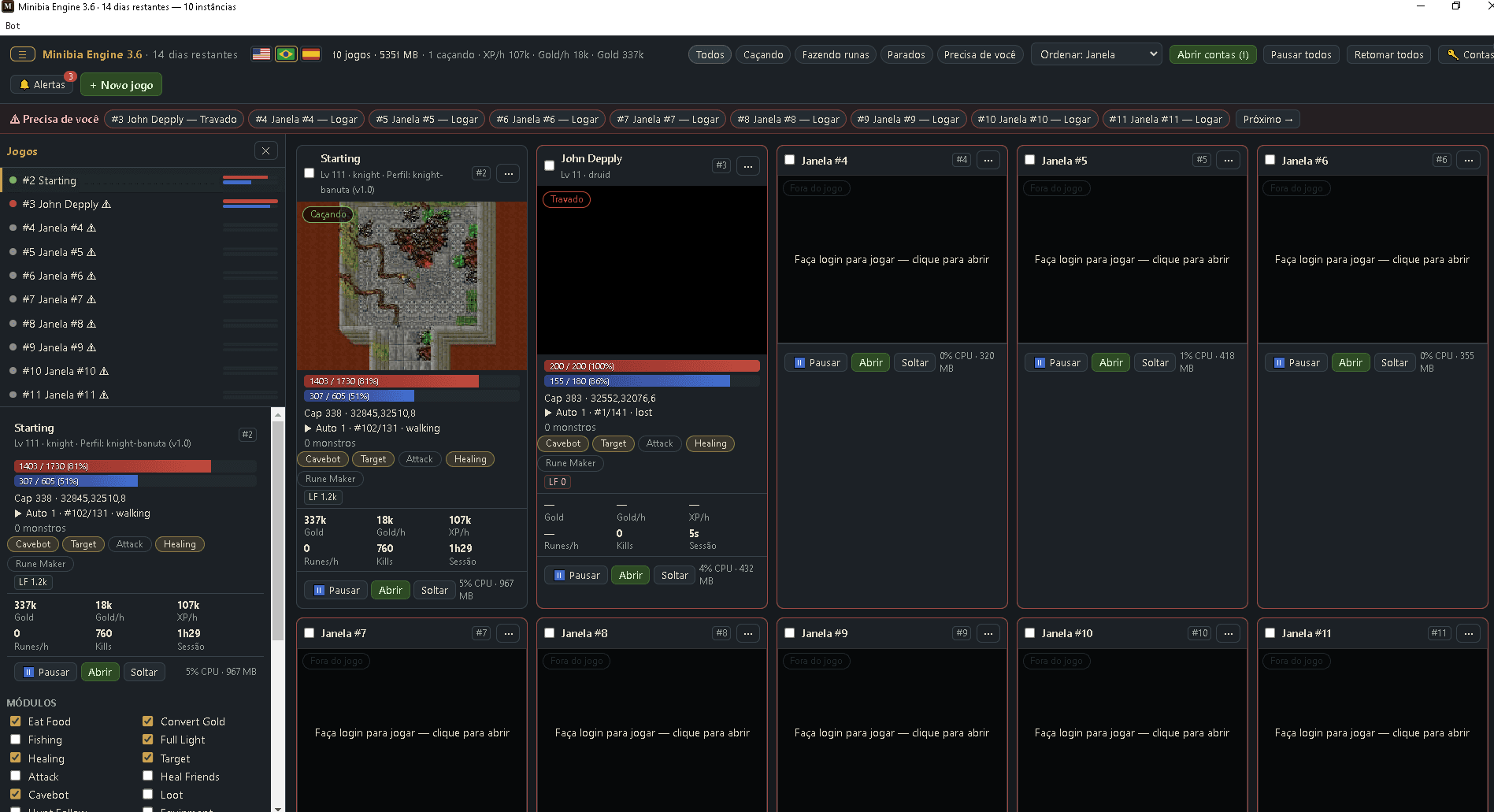
On PC the app opens the admin: one window with every character you play, each in a card with its live picture, life and mana bars, what it is doing and quick switches. Click a picture to play that game in the whole window; “← All games” brings you back.
Prefer a compact list? Click ☰ at the top left of the admin. A side panel opens next to your games with every character and its life and mana bars, and below, the controls of the one you click: features, pause hunting, profile, Cavebot script, start at a waypoint, open the bot window, reload, logout and close. Double-click a character in the list to open its game. The panel starts hidden; click ☰ again (or ✕) to hide it, and the admin remembers your choice on that PC.
Leave the panel open and it stays at the left of the game you open, so you keep seeing every character’s life and mana while you play: click a name to see its controls, double-click to switch to that game. With the panel closed, opening a game shows only the game. The ☰ is also on the thin bar at the top of an open game, to open or close the panel without going back.
Pick a feature
Each page has a picture of the bot window, every setting explained, and a ready-to-copy example.