
Profiles
Module: Profiles
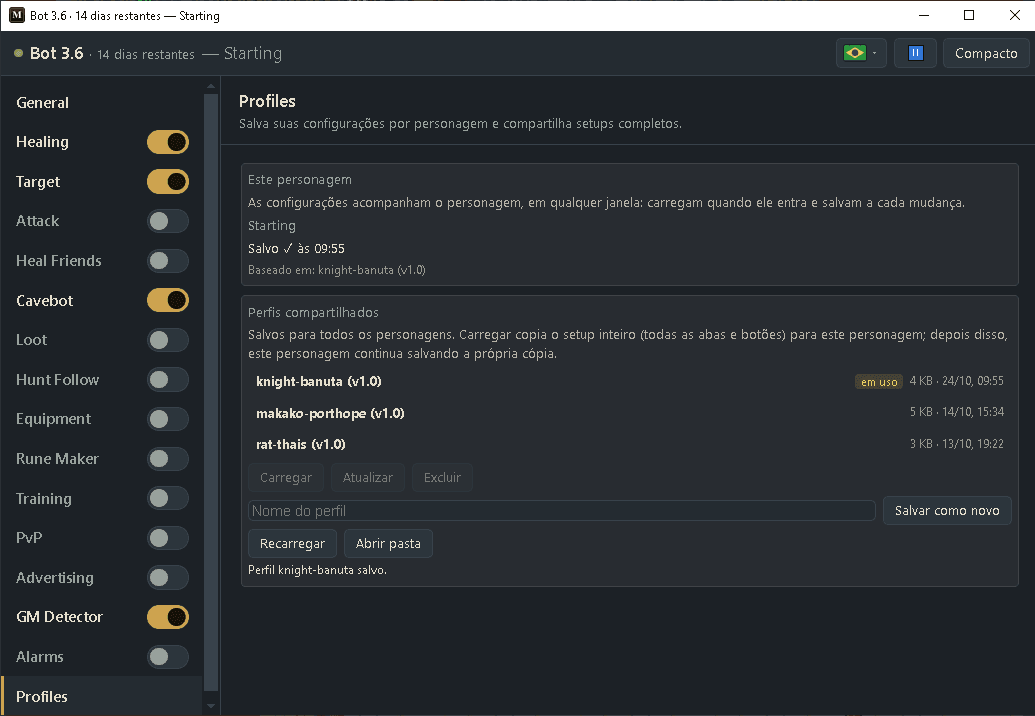
Your settings belong to your character, not to the window. Log in with a character in any window (or on your phone) and its settings load by themselves; every change is saved by itself. Shared profiles let you copy a whole setup to other characters with one click.
How to turn it on
- 1Nothing to turn on: log in with your character and the bot remembers its settings from then on.
- 2The first time a character logs in with this version, the settings you have now become its profile — you lose nothing.
- 3To reuse a setup on another character: open all settings (⤢, All settings), pick Profiles in the list, type a name and press Save as new. Then log in with the other character, select the profile and press Load twice.
Settings, one by one
This character (automatic)
Character and status
The character in the game and whether its settings are saved. Every change in any module (and every on/off switch) is saved about one second after you stop changing things.
Values: Saved ✓ · Changes will be saved in a moment… · Saving… · Could not save (trying again) · Saved by a newer bot version (update the bot).
ExampleSir Knight — Saved ✓ at 21:40
Loads by the name
When a character logs in, the bot loads that character’s own settings: every module, cavebot scripts, target list, alarms and switches. It works in any window of the PC app and on Android. A notice at the top of the full view says “Loaded Sir Knight’s settings”.
Values: Automatic. Accents and upper/lower case in the name don’t matter.
Based on
The last shared profile you loaded into this character, just to remind you where its setup came from.
ExampleBased on: Rotworm hunt
Shared profiles (for every character)
List
Your saved profiles, with size and date. Click one to select it. “in use” marks the one this character was based on; “damaged” or “newer bot” mark files the bot can’t use.
Load / Update / Delete
Load copies the whole selected profile into this character (it replaces its settings). Update overwrites the selected profile with this character’s current settings. Delete sends it to the trash folder. All three ask for a second click (“Confirm?”).
Values: After Load, changes in this character do NOT change the shared profile — only Update does.
ExampleSelect “Rotworm hunt” → Load → Confirm?
Save as new
Creates a shared profile with this character’s current settings.
Values: Up to 40 characters: letters, numbers, spaces and . _ ( ) -. Names must be different (upper/lower case counts as the same name).
ExampleKnight hunt (Rotworms)
Refresh / Open folder
Refresh reads the list again. Open folder (PC app only) opens the folder where the profiles are, so you can back them up or copy them to another PC.
Values: PC: menu Bot → Open profiles folder does the same.
Good to know
Safe files
Profiles are saved in encrypted files: only the bot can open them. If a file gets damaged, the bot never overwrites it — it moves it aside and keeps going.
Updates
New versions of the bot keep reading your old profiles. A profile saved by a newer version still loads in an older one, but the older one won’t overwrite it.
Ready example
- Knight A: set up Healing, Target and a Cavebot script → Profiles module → type “Rotworm hunt” → Save as new.
- Open a new character window and log in with Knight B → select “Rotworm hunt” → Load → Confirm?
- Knight B now hunts with the same setup and keeps its own copy: change its Healing and Knight A stays the same.
- Next day, open Knight B in any window: its settings load by themselves.
On the PC the profiles live in the app’s AppData folder; copy the Profiles folder to back them up.
On Android the profiles are erased if you uninstall the app. Updating the app keeps them.