
Profiles
Tab: Profiles
Profiles save the whole bot setup under a name and load it with one click. The bot already comes with three ready profiles: Healer, Knight and Mage.
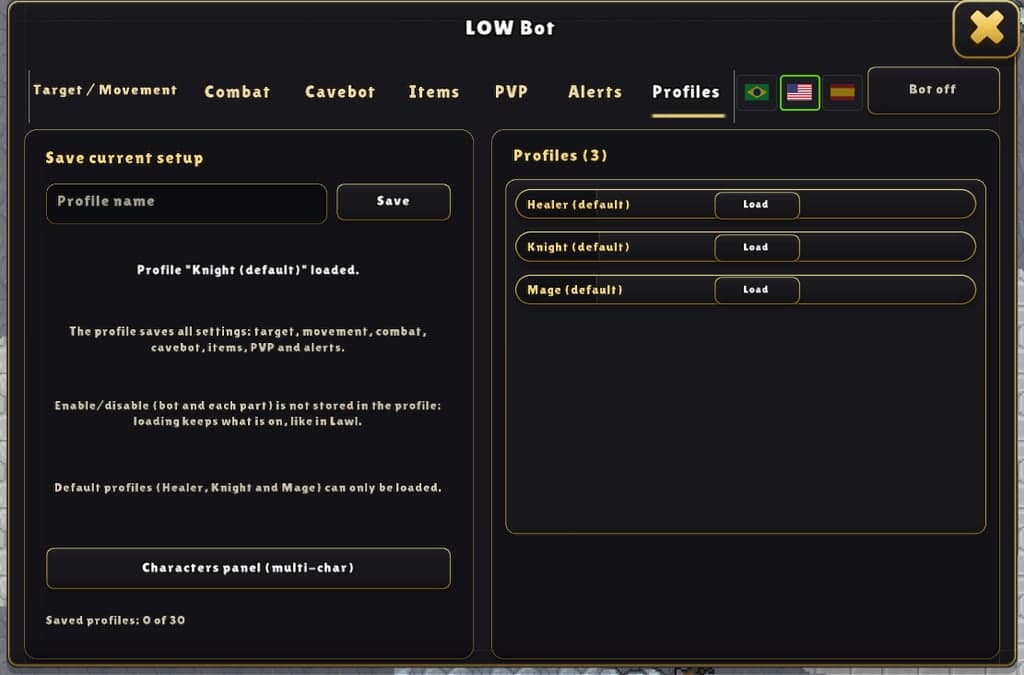
How to turn it on
- 1Set up the bot your way.
- 2Open the Profiles tab, type a name and click Save.
- 3To use it later, click Load on the profile's row.
Settings, one by one
Save
Saves everything: target, movement, combat, cavebot (with the route), loot, refill, PVP and alerts. With a name that already exists, the button turns into Replace.
Values: Up to 30 profiles.
ExampleKnight Cyclops
Load
Applies the profile. It doesn't turn anything on by itself: what was on stays on and what was off stays off.
Update
Saves the current setup over the profile. Asks you to Confirm.
Remove
Deletes the profile. Asks you to Confirm.
Default profiles
Healer (default), Knight (default) and Mage (default), with spells and potions ready. They can only be loaded: to change one, load it and save it under another name.
Characters panel (multi-char)
The button at the end of the tab opens the characters panel.
Example
- Load Knight (default).
- Adjust the monster list and record the route in the Cavebot.
- Type Knight Cyclops and click Save.
Profiles stay on your computer, separate for each window: every character has its own.