
LOW Bot guide
This guide explains, in plain words, everything LOW Bot does in Low MMORPG: every tab, every setting and a ready-to-copy example. Open the page of the feature you want to use and follow the steps.
1. Open the bot
- 1Open low-engines-bot.exe, which you download on this site's Download page. Sign in with the username and password of your bot account.
- 2Low MMORPG opens in the app window. Log into the game with your Low account, as usual.
- 3In the game, click the bot button, next to the top bar. The LOW Bot window opens on top of the game.
- 4The title of the app window shows the bot version and how many days of access you have left.
2. How the window works
The window has eight tabs: Target / Movement, Combat, Cavebot, Items, PVP, Alerts, Scripts and Profiles. At the top right is the Bot on / Bot off button. The language (Portuguese, English, Spanish or Polish) is chosen with the flags of the characters panel and changes every window right away. Changes work right away and are saved on your computer, with no save button. To keep several ready setups, use Profiles.
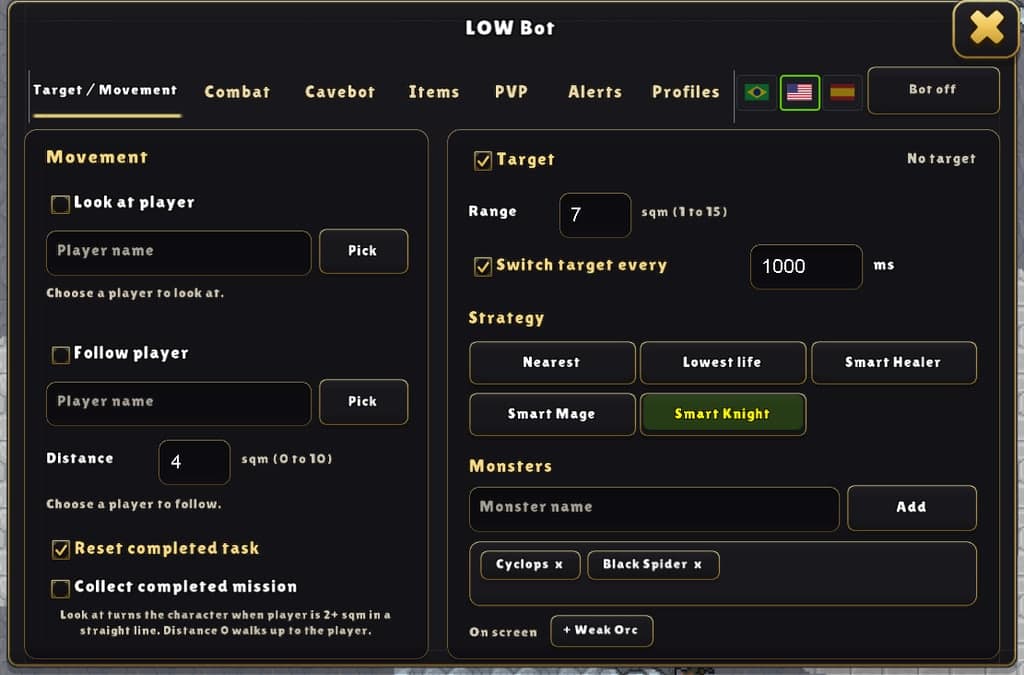
3. Turning it on and off
The Bot on / Bot off button turns the whole bot on or off: when it is off, nothing runs. Each part (Target, Healing, Potions, Attack, Cavebot, Loot, Refill, Combo leader, Alerts, Scripts) has its own checkbox and only runs when it is ticked and the bot is on. The exception is MW time, which only shows the seconds on screen and works with the bot on or off. Loading a profile never turns anything on by itself: the scripts of the profile come as they were saved and only run with the Scripts checkbox ticked.
Pick a feature
Each page explains one part of the bot, setting by setting, with a ready-to-copy example.
Scripts
Want the bot to do something no tab does? Write a JavaScript script in the Scripts tab. Every function and the 47 ready examples are on the Scripts page.
Open the Scripts page