
Mirage Engine guide
This guide explains, in plain words, everything Mirage Engine does in Mirage Realms: every tab, every setting and a ready-to-copy example. Open the page of the part you want to use and follow the steps.
1. Open the bot
- 1Open mirage-engines-bot.exe, which you get on the Download page, and log in with the username and password of your bot account.
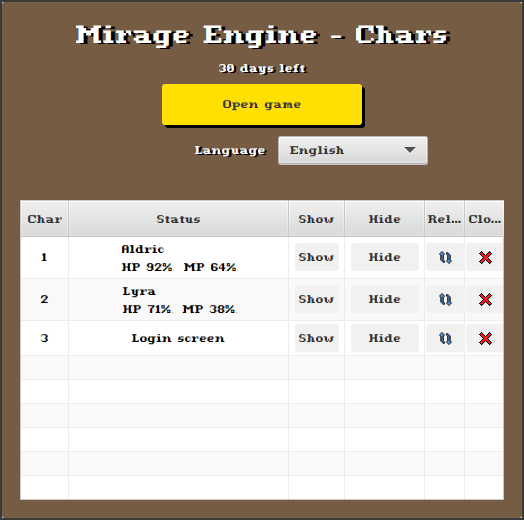
- 2The Mirage Engine - Chars panel opens. Click Open game once for each char you want to play.
- 3Each click opens Mirage Realms and, next to it, a Mirage Engine - Char window. Log into the game with your character, as usual.
- 4In the bot window, set what you want and tick Bot enabled (master switch).
2. How the window works
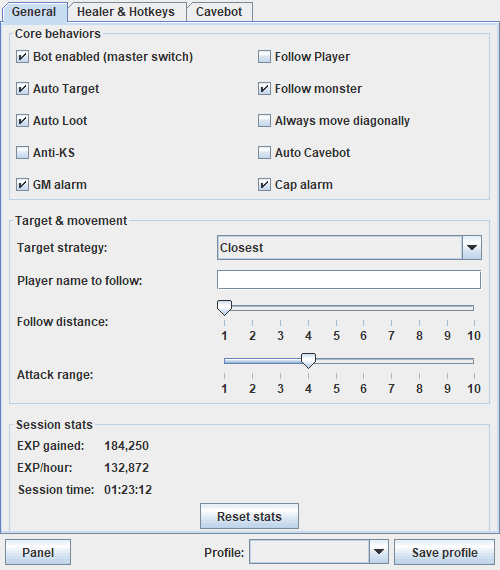
The bot window has three tabs: General, Healer & Hotkeys and Cavebot. General has the main switches, the Target and movement settings and the Session stats. Changes work right away. The bar at the bottom, on every tab, has the Panel button, which brings the chars panel back, the Profile list and the Save profile button. Closing the bot window only hides it: the Show button on the chars panel brings it back. The window's title shows your char's name and position and the days left.
3. Turning it on and off
Bot enabled (master switch) turns the whole bot of that char on or off: with it unticked nothing runs, even if the other boxes are ticked. Each part (Auto Target, Auto Loot, Follow Player, Follow monster, Always move diagonally, the alarms, the Cavebot) has its own box and only runs with its box and the master switch ticked.
4. Language
The bot speaks English, Portuguese, Spanish and Polish. Choose it in Language, on the chars panel: every window changes right away and the choice stays saved. The first time, the bot follows your computer's language.
Pick a feature
Each page explains one part of the bot, setting by setting, with a ready-to-copy example.