
Chars panel
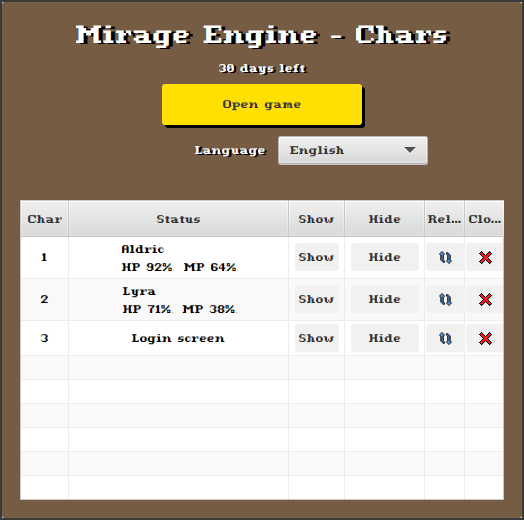
Window: Mirage Engine - Chars
The chars panel is the first window after you log in. From it you open as many games as you want with a single login, follow the HP and MP of every char and show, hide, reload or close each one.
How to turn it on
- 1Open mirage-engines-bot.exe and log in with your bot account.
- 2Click Open game. Mirage Realms opens with the bot window of Char 1.
- 3Click again for each extra char. Clicks in a row are queued and the games open one after the other, a few seconds apart.
- 4Log into the game in each window with the character you want.
Settings, one by one
The top of the panel
Days left
How many days your account still has. When a newer version of the bot is out, the same line also shows New version available and its number.
Open game
Opens one more char: the game and its bot window. Each char takes the lowest free number (Char 1, Char 2…). If you close Char 2, the next one you open is Char 2 again.
Values: There is no limit of chars.
Language
Changes the language of the panel and of every open char at once.
Values: Português, Español, English, Polski.
One line per char
Status
What that char is doing: Starting... while the game opens, Login screen while no character is in the game, then the character's name with its HP and MP in percent. “bot off” shows when Bot enabled is unticked, “dead” when the character died, and Not responding when the char stops answering. After an alarm, the line also shows ! GM or ! Cap for about a minute.
Show
Brings that char's game and bot window to the front.
Hide
Hides the bot window and minimizes the game of that char.
Reload
Closes that char and opens it again, as a fresh game.
Close
Closes that char's game and bot window, after asking you to confirm.
Closing windows
The bot window
Closing it only hides it. Show brings it back.
The game
Closing the game closes that char, and its line leaves the panel.
The panel
With chars open, closing the panel only minimizes it and the chars keep playing. The Panel button, at the bottom of every bot window, brings it back. To leave for good, close the chars first and then the panel.
Example: three chars on one account
- Log in and click Open game three times.
- Log each game in with a different character.
- On each bot window, load that char's profile and tick Bot enabled.
- Click Hide on the chars whose windows you don't need on screen, and Show to bring one back.
Opening the .exe again while the panel is open only shows “Mirage Engine is already open.”: there is one panel per Windows user.
All chars share the same profiles: each one loads its own from the Profile list.
If the panel loses its connection, the bots of all chars pause and come back by themselves when it returns.