
Lawl Bot guide
This guide explains everything the bot does, in plain words, with a real picture of the bot and an example for each setting. Read the page for the feature you want, copy the example, and you are done. It works the same on the computer and on the phone.
1. Open the bot
- 1Computer: open start.bat in the bot folder, type your username and password in the small window and click Sign in. The game opens next.
- 2Phone: open the Lawl Engine app and log into the game with Google, as in the official app.
- 3In the game, open the Hunt Assist. window and go to the Notifications tab. That is where the bot lives. On the phone, log into the bot there with your username and password.
- 4Bottom left you see “connected (30d)” — the number is how many days your access has left.
2. How the panel works
On top is the row of switches. Under it are the tabs General, Combat, Cavebot, Item and Alert, and each tab has its own sub-tabs. At the bottom: the connection status, the Pause key hint and the language. Changes work right away — there is no save button; to keep a setup for next time, save it as a Profile. On the computer the same settings are also in the Lawl Engine window next to the game; use one of the two at a time.
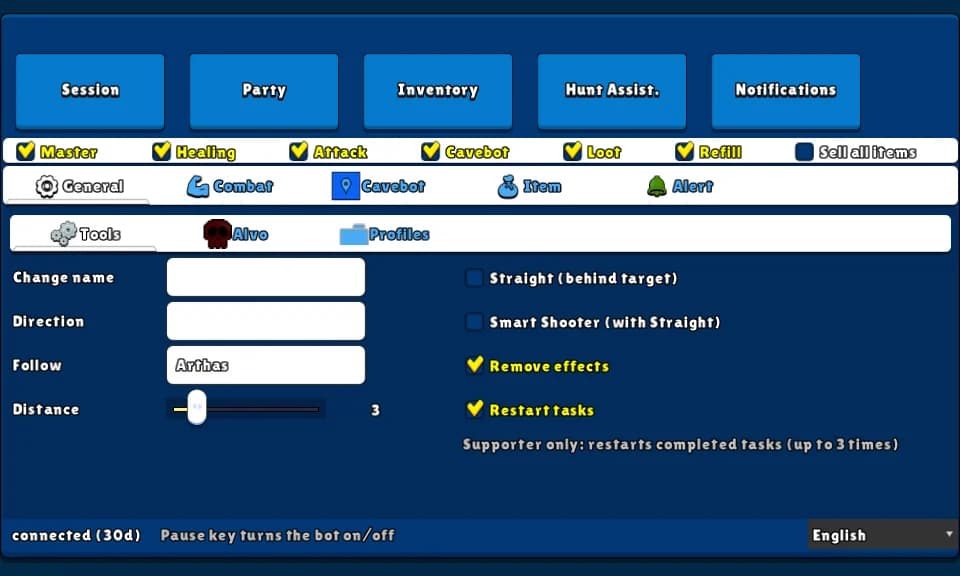
3. The switches
Master turns the whole bot on or off — the Pause key on the keyboard does the same. Healing runs the heals, potions and buffs; Attack runs the targeting and the attacks; Cavebot walks the route; Loot picks up items; Refill buys, sells and deposits; Sell all items sells your loot bag to the NPC. Every switch starts off each time you open the bot. Follow, the alarms and restart tasks have no switch of their own: they work whenever Master is on.
Pick a feature
Each page has a real picture of the panel, every setting explained and a ready-to-copy example.